
A Customer is a company or a person you sell hay to. Each one keeps their contact details, how far away they are and who usually hauls for them, your notes from calls and visits, and every Sale you've made them. Their freight details fill in each new Sale, so you only type them once.
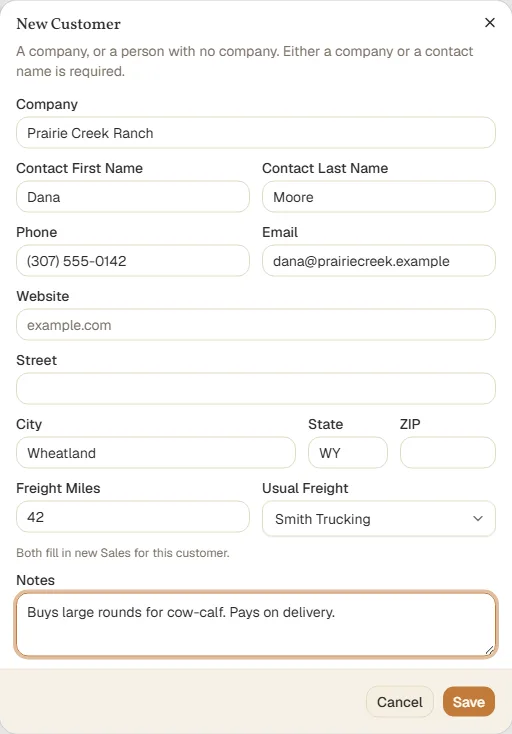
Add a Customer
- Open Sales → Customers and click New Customer. You can also add one from the Sell dialog, with the person button beside Customer.
- Enter the Company, or leave it empty for a person with no company. Either a company or a contact name is needed.
- Add the contact's name, phone, email, website, and address, as much as you have.
- Set Freight Miles (how far you haul to them) and their Usual Freight: the hauler they normally use, or Customer pickup if they haul their own. Both fill in each new Sale for them.
- Add Notes that always apply: what they buy, how they pay, gate codes.
- Click Save.
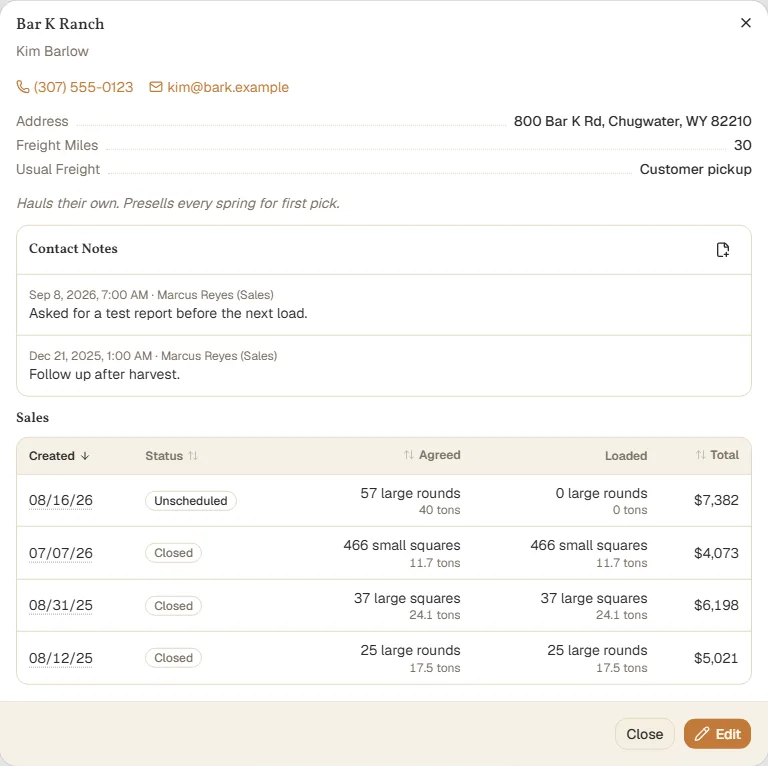
A Customer's details
Click the eye on a Customer's row to see everything about them: their contact details and freight, your Contact Notes, newest first, and every Sale you've made them. Click a Sale to open it.
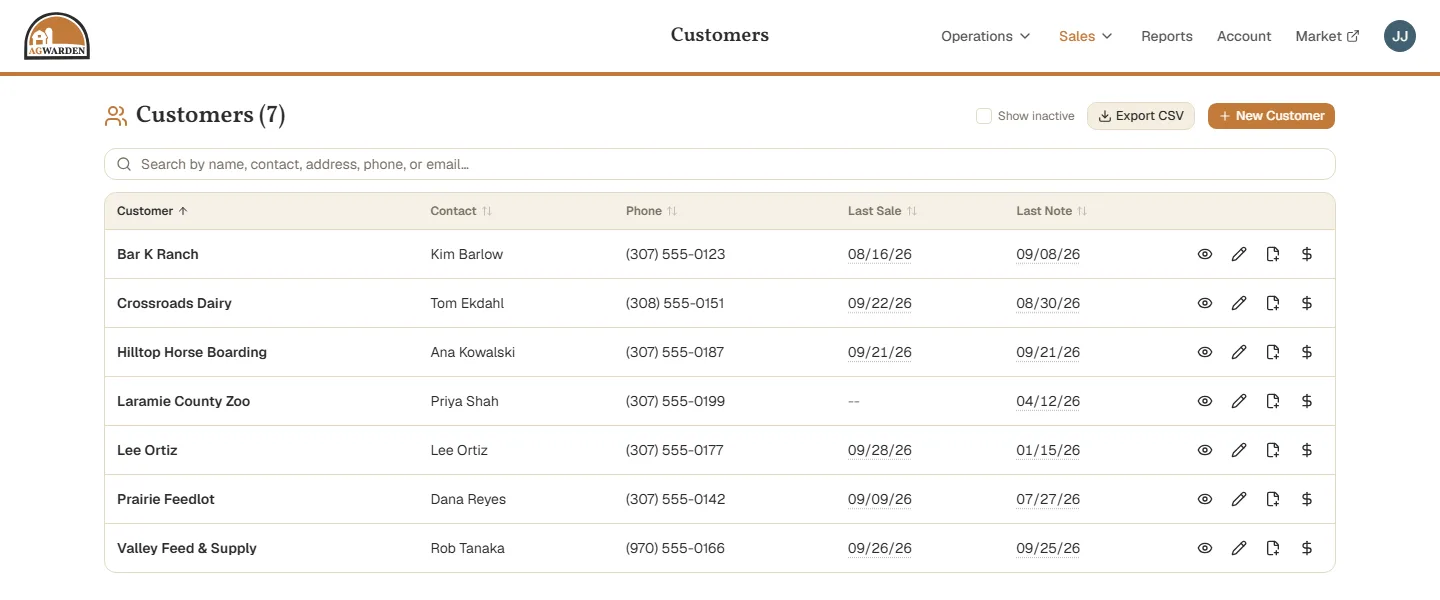
Each row also has:
- the pencil, to edit the Customer;
- the note, to add a contact note: what was said on a call, when to follow up. Each note is dated and shows who wrote it;
- the dollar sign, to sell to them. The Sell dialog opens with the Customer and their freight filled in (see Creating a Sale).
Finding Customers
The search box looks through company and contact names, addresses, phone numbers, and emails as you type. Click a column heading to sort by it. Last Sale and Last Note show who you haven't talked to in a while.
A Customer you no longer sell to can be made inactive: edit them and clear Active. Inactive Customers aren't offered for new Sales, but keep their history. Check Show inactive to see them.
Export CSV downloads every Customer, inactive ones too, as a spreadsheet.
Next
Sell them some hay: Creating a Sale.