
The Loads page is the freight yard's list: every truck that's coming, with when, for whom, from which Stack, and who's hauling. The yard crew works from it to load the right hay on the right truck, and marks each one loaded as it leaves.
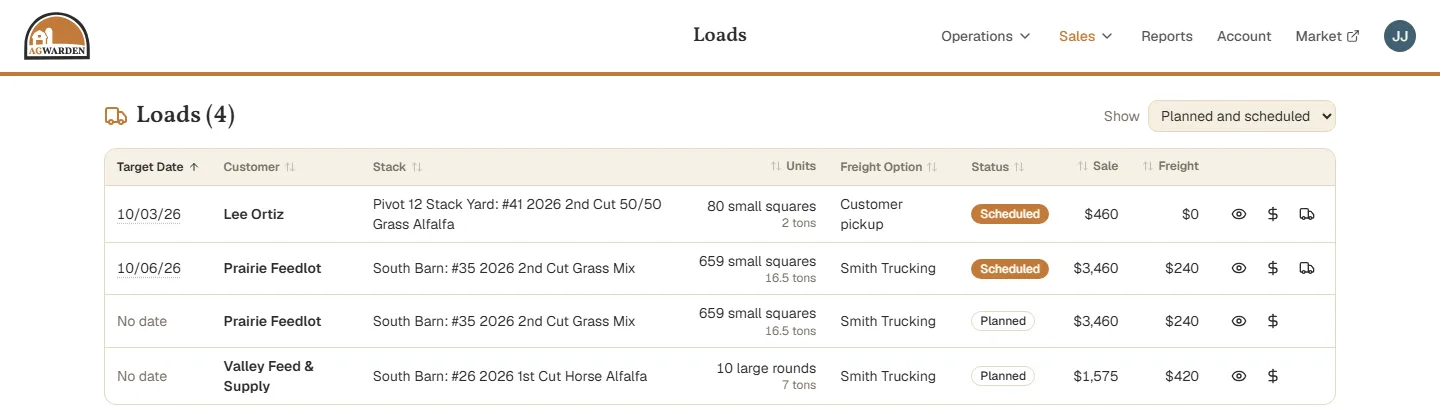
Open it from Sales → Loads. Loads are listed by Target Date, soonest first; planned Loads with no date yet come last.
Which Loads show
The Show list picks them:
- Planned and scheduled, the default: everything still to come.
- Scheduled: the trucks that are booked. This is the upcoming pickups list.
- Planned: promised, but not booked yet.
- Loaded and Cancelled: past Loads.
- All.
Each row shows the Customer, the Stack to load from, how many Units (with tons under them, at the Lot's weight), the Freight Option, the Load's Status, and its Sale and Freight dollars.
A Load's details
Click the eye on a row to open the Load. The dollar sign opens the Sale it's part of.
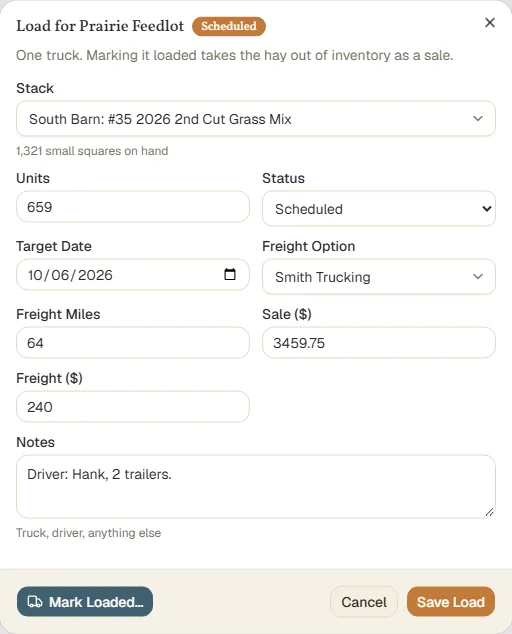
Here you can change the Stack, the units, the status, the target date, the hauler, and the dollars, and add Notes: the truck, the driver, anything else. A Load needs a Stack, a Target Date, and a Freight Option to be Scheduled; the dialog shows what's still missing. Set the status to Cancelled if a truck isn't coming.
Mark a truck loaded
When a truck leaves, click the truck icon on its row. It's there for scheduled Loads on open Sales. Or open the Load and click Mark Loaded….
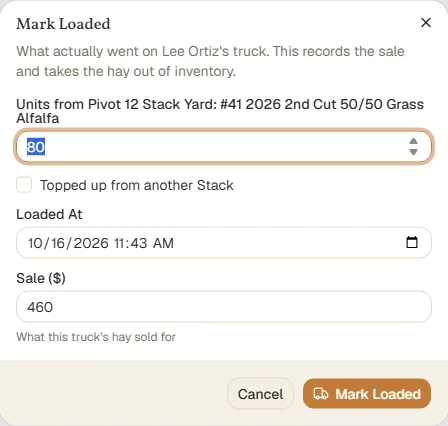
- Enter how many bales actually went on the truck.
- If it was topped up from another Stack, check Topped up from another Stack, pick it, and enter how many came from there.
- Check Loaded At, the date and time it left, and the Sale dollars for this truck.
- Click Mark Loaded.
This records the sale and takes the hay out of inventory. If it was a mistake, open the Load and choose Undo Loaded, and the hay goes back.
For how Loads fit into a whole deal, see Creating a Sale.