
The Sales page is every deal in one list: who it's for, how much was agreed, how much has loaded, and what it's worth. Use it to see where each deal stands, to find what still needs a truck, and to find what's ready to bill and close.
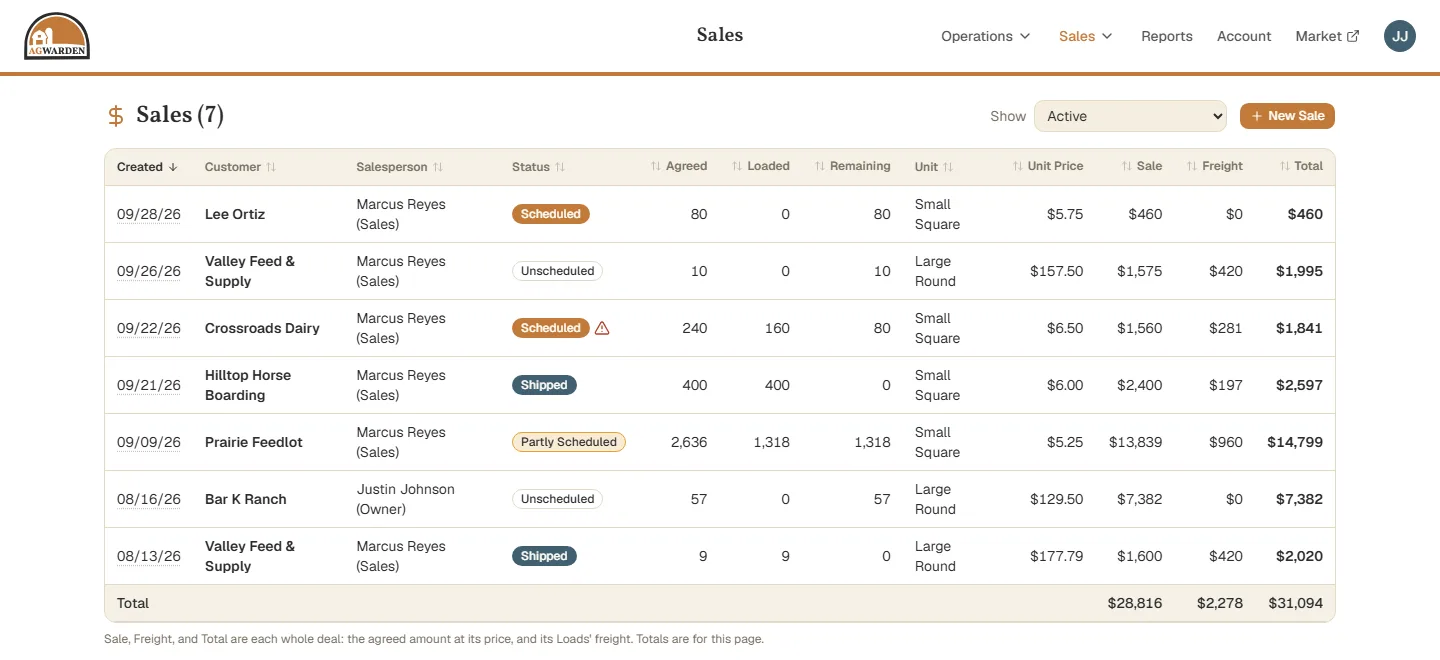
Open it from Sales in the menu at the top. Click any row to open that Sale. New Sale starts a new one (see Creating a Sale).
Sale statuses
Each Sale shows where it stands:
- Unscheduled: nothing is on a truck yet.
- Partly Scheduled: some of it has a scheduled or loaded Load, some doesn't.
- Scheduled: every bale agreed has a truck.
- Shipped: everything has loaded, and it came to what was agreed. It's ready to bill and close. If it loaded short or over, it stays Scheduled with a warning instead (see below).
- Closed: done and locked.
- Cancelled: the deal fell through.
Hover over a status to see how much of the deal is covered.
The Show list at the top picks which Sales to see. Active, the default, is every open Sale. Choose a single status to work through it: Unscheduled for deals that still need trucks, or Shipped (ready to close) for the bookkeeper's list of Sales to bill and close. All shows every Sale, closed and cancelled ones too.
The columns
- Created, Customer, and Salesperson: when the deal was made, who it's for, and who made it.
- Agreed, Loaded, and Remaining: in whole bales of the Sale's Unit. A deal agreed in tons shows its bales, converted at the Sale's weight per bale (see Bales and tons).
- Unit Price: the price for one bale, converted from the price per ton if that's how it was agreed.
- Sale, Freight, and Total: the whole deal, whether or not it has loaded yet: the amount agreed at its price, plus its Loads' freight.
The Total row at the bottom adds up the Sales on the page. Click a column heading to sort by it.
When the Loads don't match
Trucks don't always carry exactly what was agreed. When a Sale's Loads add up to less or more than its amount agreed, its status gets a warning icon. Open the Sale to see by how much.
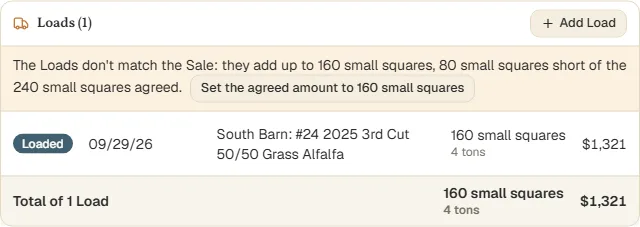
If the Loads are right and the deal changed, click Set the agreed amount to… so the Sale matches what really went out. If the deal still stands, add a Load for the rest, or change the Loads you have.