
Billing is how your operation keeps using AgWarden after its free trial. It's set up once, by the operation's owner, from the Billing section of the Account page, and paid yearly through Stripe, which keeps your card or bank details: AgWarden never sees them. This page covers adding billing, managing it, getting invoices for your records, and what happens if a payment fails.
Add billing
During your trial, the strip under the menu shows the days left, with an Add billing link that opens the Billing section of the Account page. Click Add billing there.
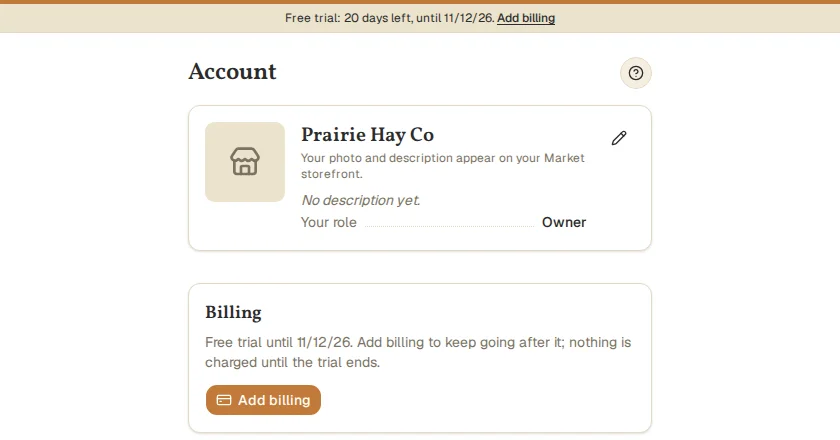
Stripe's secure payment page opens. Pay with a card, or with your operation's bank account (US checking or savings). If AgWarden gave you a promotion code, enter it there. You come back to the Account page when you're done, and it confirms within a few seconds.
Adding billing during your trial costs nothing until the trial ends. You keep every trial day, and the first payment is taken on the day the trial would have ended. With only a day or two of trial left, the payment is taken when you add billing.
Manage billing
Once billing is added, the section shows your plan and the date of the next payment.
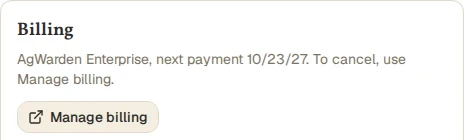
Click Manage billing to open Stripe's billing page, where you can change your card or bank account, see past invoices, or cancel. You come back to the Account page when you close it.
Cancelling stops the next yearly payment. Your operation keeps full access until the end of the year you've paid for, and the Billing section shows the date it ends. Changed your mind? Renew on the same page any time before then. If something isn't working for you, we'd like to hear about it first: email support@agwarden.com.
Invoices for your records
Under Invoices, the Billing section lists every payment, newest first: the date it was paid, the amount, and the dates it covers. Click Invoice beside one to open it as a PDF, ready to print or save. Each invoice shows the plan, the period it pays for, any discount, tax, the total, and how it was paid, which is what a bookkeeper needs to reconcile the charge. They're there whenever you need them, including at tax time.
If a payment fails
If a yearly payment doesn't go through (an expired card, say), a Payment failed strip appears under the menu, and Stripe emails you. Nothing stops working: Stripe tries the payment again over the following weeks. Click Update your payment method in the strip, or Update payment on the Account page, to change the card or bank account.
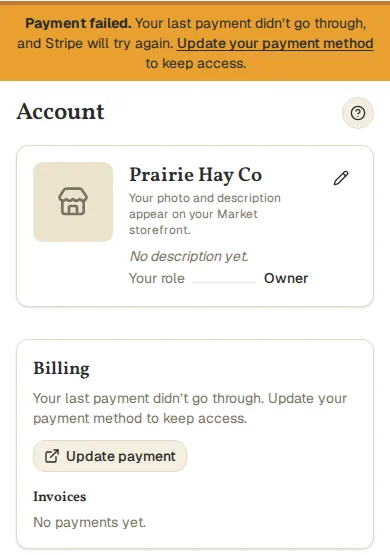
If the payment still can't be taken, your operation becomes read-only, the same as when a trial ends.
If your access has ended
When a trial ends without billing, or billing stops, your operation becomes read-only: you can still log in, look at everything, and export your data, but not add or change anything. The strip under the menu says so, and when login closes, 30 days later. Your data stays. To continue, click add billing in the strip (or Add billing on the Account page) and pay, and everything works again at once. Or contact support@agwarden.com.
